
Mobile Speed Is a Ranking Factor. Here’s How To Check Yours.
In my last post, I covered what happens when a potential customer lands on your website from their phone and what they need to see before they decide to call. Speed was part of that conversation, but it deserves more than a paragraph. Google has been using page speed as a ranking factor for mobile searches since 2018, and in 2021 it formalized that into a specific set of metrics called Core Web Vitals. If you’ve never heard of them, you’re not alone. Most local business owners haven’t, and their sites are paying for it.
What Google is actually measuring
Core Web Vitals are three specific metrics Google uses to evaluate the quality of a page’s experience for real users. They measure different things, and understanding what each one is makes it easier to know what to fix when your scores are low.
LCP, or Largest Contentful Paint, measures how quickly the main content of your page loads. Google’s threshold for a good score is under 2.5 seconds. For most local business sites, the LCP element is either a large hero image or a block of text near the top of the page. Oversized, uncompressed images are one of the most common culprits here.
INP, or Interaction to Next Paint, measures how quickly your page responds when a user interacts with it — tapping a button, clicking a link. The threshold is under 200 milliseconds. This metric replaced an older one called FID in March 2024 (Google Search Central).
CLS, or Cumulative Layout Shift, measures visual stability: how much the page jumps around as it loads. A score under 0.1 is considered good. If you’ve ever been on a mobile site and tried to tap a button that shifted just as you touched it, that’s CLS in action. It’s frustrating, and Google treats it as a signal that the page experience is poor.
One thing worth being honest about: Google has stated explicitly that good Core Web Vitals scores don’t guarantee rankings, and there’s no single signal. These are inputs into a broader evaluation. That said, they’re confirmed ranking inputs, and for a local business competing in a market where many sites are mediocre on technical performance, improving them is low-hanging fruit.
How to check your scores
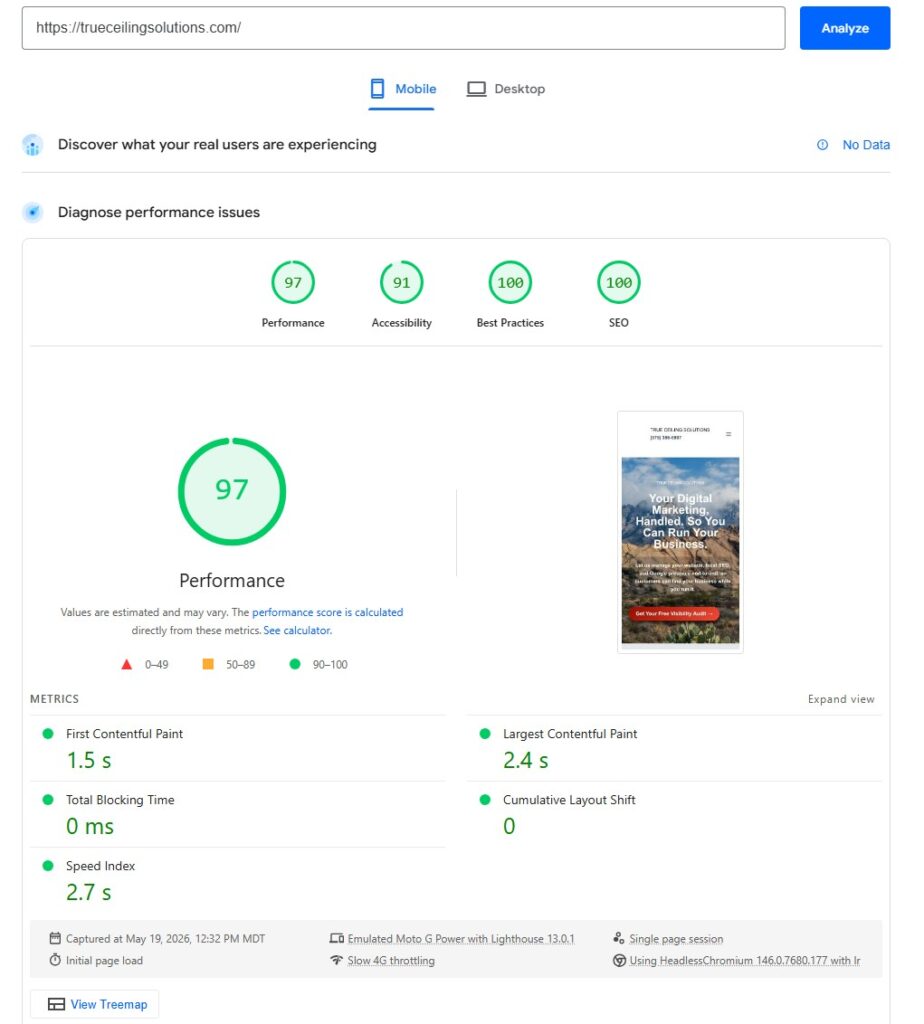
The fastest way is Google’s PageSpeed Insights tool at pagespeed.web.dev. Enter your URL and run the analysis. The tool produces separate scores for mobile and desktop — check the mobile score first, since that’s the one that matters most for local search given Google’s mobile-first indexing.
The score runs from 0 to 100. Below 50 is poor. 50 to 89 is average. 90 and above is good. Below the score, the tool breaks down exactly which issues are dragging the number down and gives you specific recommendations. Some of those recommendations require a developer to implement. Others, like compressing images, are things a non-technical person can do in an afternoon.
If you have Google Search Console set up for your site (and you should), the Core Web Vitals report there gives you a more comprehensive view. It shows you how your pages are performing across real users over time, grouped into “Good,” “Needs improvement,” and “Poor” categories. The advantage over PageSpeed Insights is that it reflects actual user data rather than a simulated test.
What typically causes low scores on local business sites
Speaking from what I see regularly: oversized images are the most common issue. A photo that looks fine on the page is often 2–4MB when it should be under 200KB. Most website builders and WordPress plugins have image compression tools built in or available; the problem is that nobody turns them on.
The second most common issue is theme or plugin bloat. A WordPress site running twelve plugins and a heavyweight theme is loading a lot of code before it shows a visitor anything useful. Some of that is unavoidable. A lot of it isn’t. Render-blocking resources like scripts and stylesheets that load before the page can display content come up frequently in PageSpeed reports for sites built without performance in mind. This one usually requires a developer to address properly.
What to do this week
Run your site through PageSpeed Insights and note your mobile score. If it’s below 70, look at the specific issues the tool flags. Image compression is the one to tackle first if it shows up, because it’s the most accessible fix for a non-developer and often has the largest impact. If your site is on WordPress, a caching plugin like WP Rocket or W3 Total Cache addresses several common performance issues without requiring you to touch code. If your score is below 50 and the issues are beyond image compression, that’s a conversation worth having with a developer before you invest further in driving traffic to the site.
Page Speed Insights reporting is part of our routine SEO & Website maintenance package at True Ceiling Solutions. If you’d like a free report and analysis, send us an email at contact@trueceilingsolutions.com or give us a call at 575-386-5987 and we’ll get started.


Not sure what your Google Business Profile looks like to potential customers right now? Our Free Visibility Audit will show you exactly where your listing stands — and what it might be costing you. Fill out the form below to get started.
Let’s Talk About Your Business
Fill out the form below and our team will reach out to schedule your free visibility audit — a no-pressure conversation about where your business stands online and where it could be.